Preface
In todays’ age, you would think that when you have to update BIOS on your servers, you will be downloading an exe file and simply run it from your machine, ofcourse assuming you are running Windows on the machine. I was in for an unpleasant surprise of finding out that SuperMicro’s MicroCloud systems can only be updated using one of the two methods:
- Download BIOS zip file, which contains DOS executable and BIOS update bin file (which isn’t named .bin either!)
- Use IPMI and apply BIOS update OOB (out-of-band), which requires purchase of separate activation key per server blade in given chassis!
Let’s talk option 2 for a moment. The option sounds very interesting indeed. You can simply go to http://ipmi_ip of your server and update BIOS. Even if I have to reboot the server to apply changes, the update itself is promised to be out of band. That is certainly very convenient. However, SuperMicro seems to consider this feature a luxury! To be able to update BIOS using this option, you will have to purchase a product key and activate it, per server. Irony of this is calling SuperMicro and resellers who actually sold me this system resulted in clueless sales people caught blind with no idea of what I was asking them the quote for. Infact, one of the sales person even gave me technical support phone number as they thought this was a technical issue!
So now, let’s talk about option 1. To make their customers purchase keys I mentioned for option 2, SuperMicro seems to have gone to great lengths to make your BIOS update process very very difficult. Here’s why:
- Product manuals for MicroCloud servers suggest that you should not update your BIOS unless your system is not working properly and update is suggested by support representative.
- Scouring SuperMicro site suggests that they used to have option to run executable from windows (like you do with Dell and other vendors), however, they call it “legacy” feature. This was also confirmed by support representative when I called SuperMicro and asked for exe format instead of DOS option they have on website.
- When I worked with support representative from SuperMicro, they asked me to create a bootable USB using Rufus (http://rufus.akeo.ie/). When I asked them I want to use ISO because I am not local to my datacenter and need to use ISO over IPMI, they asked me to talk to sales for options. Yup, classic upsale tectic.
Really SuperMicro? Why can’t you price your systems right instead of trying to charge for a feature that should be built-in for such systems to start with. Why not put a disclaimer with your manageability claims on product page so customers know what they are in for!
Anyway, enough with my rant. Let’s talk tech…
Tech Talk
Now that my options were clear, I knew I had no choice but to create a bootable ISO that contained BIOS update. I can’t use bootable USB mentioned earlier as I am not local to the datacenter and do not intend to plug-in USB disk to each server to apply BIOS update. I must use IPMI as I am remote and that leaves me with only one option, bootable DOS ISO image. I didn’t mention bootable DOS floppy image as 8MB BIOS update will not fit on floppy image.
At first, I tried figure this out on my own. I spent almost 3 days, trying all different tools that allow me to create bootable CD. However, almost all failed to produce desired bootable ISO image. Some claimed to have created the CD image but it failed to boot when I tried. At the end of my wits and wanting to not lose any more time, I reached out to SuperMicro support. After making suggestion of making bootable USB and when asked for ISO, recommending sales option, on my persistent request for ISO, I received an email stating “As a special courtesy” I will be provided with DOS bootable ISO image containing BIOS update! Yup, I am SPECIAL like that!
The problem is, the “special” favor didn’t go long. I received the download soon, only to find out that the image boots fine but won’t apply the update. As I started investigating, I found out that the update files on CD image were all 0 KB files! This I assume may have been a genuine glitch, but it still left me hanging. I reported the issue back to SuperMicro support. Since they made me feel “special” by not sharing how to create an image even after repeated requests, I was handicapped which I don’t like, especially with extensive IT background. So I decided to take matters in my hand.
First, I decided to simply mount the ISO provided by support to see what it contained. What I saw was a directory structure that was eerily familiar:
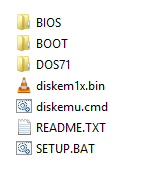
Notice diskemu and DOS71! If you are not familiar with Bart Lagerweij’s work on bood disks, quick search on internet would make you quickly familiar with his great work. He can be considered SME in this area.
Based on the info I now had on hand, I started looking for DOS 7.1 ISO images and a quick search returned this syschat community link. I now had a full DOS 7.1 install ISO. The next step was for me to figure out how to add BIOS update files to it and change default menu to my test. First, I needed to extract the image, which was easy with 7zip, which is free download and is one of my essential tools. You can extract ISO many different ways so that’s the easy part. Since we plan to create an ISO that is bootable, it is important to extract boot image as well. 7zip does it automatically. The location isn’t important but I extracted it to “C:\Temp\DOS71CD”, which we will reference later in the post.
I then extracted BIOS files I had downloaded from SuperMicro. Copied it in BIOS folder I created under extracted folder above. The folder structure at this point looks like the following:
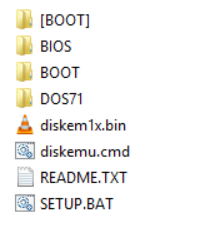
The [BOOT] folder contains bootable image file Bootable_NoEmulation.img.
Depending on tool you use to extract the ISO file, you may not see the [BOOT] folder. I used 7zip for windows, which is a free tool and was able see and extract [BOOT] folder. YMMV.
The last piece before we can create custom CD ISO is to update files. First, let’s update BIOS folder. The folder contains the following files:
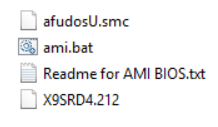
the .smc file is actually an executable. When you look at ami.bat, it renames the .smc file to .exe first, then runs it with provides BIN file as a parameter (X9SRD4.212 is actually the update bin file in my case) and finally renames executable back to smc. To simplify it a bit, I went ahead and renamed the .smc file to .exe. Then, I removed lines that rename smc file to exe and back. Finally since I was always going to apply this one update to my servers, I also chose to replace argument in bat file with actual bin file. Updated bat file looks very simple:
@echo off
AFUDOSU X9SRD4.212 /P /B /N /K /R /FDT /MER /OPR
At this point, we have all the files in a file structure for ISO. All we need to do is put it together in a nice bootable ISO file. While there are many options and many ways to do this, I am going to show you just one that worked for me. If you want to follow along, go ahead and install MagicISO on your computer. Then follow these steps:
Open MagicISO
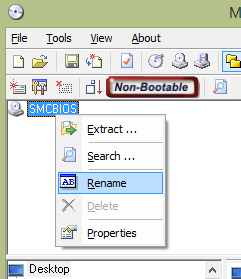
On the new image file screen, right click CD and rename it to your linking:
From tools menu, select “Load Boot Image”
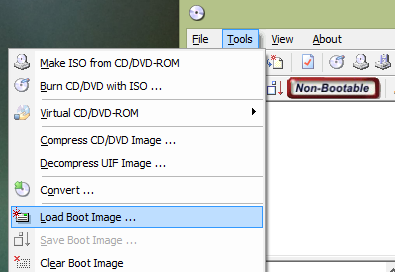
Click “From bootable image file” and select Bootable_NoEmulation.img file from [BOOT] folder

Drag and drop all files and folders except [BOOT] folder from DOS71CD folder
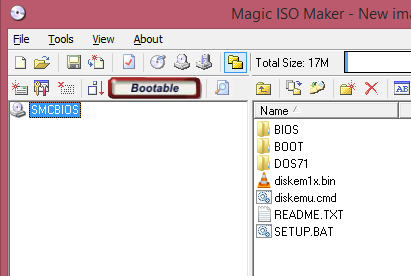
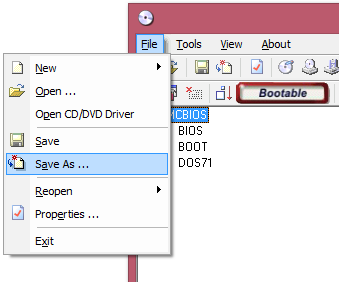
From File menu, click “save as” and provide location and filename for new ISO.
That’s it! Go ahead and boot your SuperMicro systems with this ISO to apply the BIOS update.
Since we used MSDOS 7.10 installation disk, it will start DOS install if you don’t make any selection at boot screen. You want to cancel the installation which will put you at command prompt on A drive. You now can switch to C:\BIOS and start ami.bat. This will kick off bios update. If you feel adventerous, you can update diskemu.cmd to customize boot menu title and then update autoexec.bat located inside DOS7INS.IMG under BOOT folder. This way you will be able to boot from CD and automatically start BIOS update, no user interaction required! I trust your skills and ability to figure this out on your own. Hint 1: I’m tired by writing this long post, Hint 2: you can use MagicISO to edit IMG files as well.
I just finished BIOS updates remotely using IPMI on my servers. What a good way to end Friday the 13th!
Thanks a lot for sharing this great information! Just updated the BIOS of a Supermicro motherboard remotely using IPMI and a DOS71 ISO.
Prior I’ve tried using FreeDOS, but it simply failed to boot (the system just hang in a very early stage). Interesting was also that cdrtfe failed to create the ISO with a weird error complaining about sectors and the given Bootable_NoEmulation.img. MagicISO worked just fine.